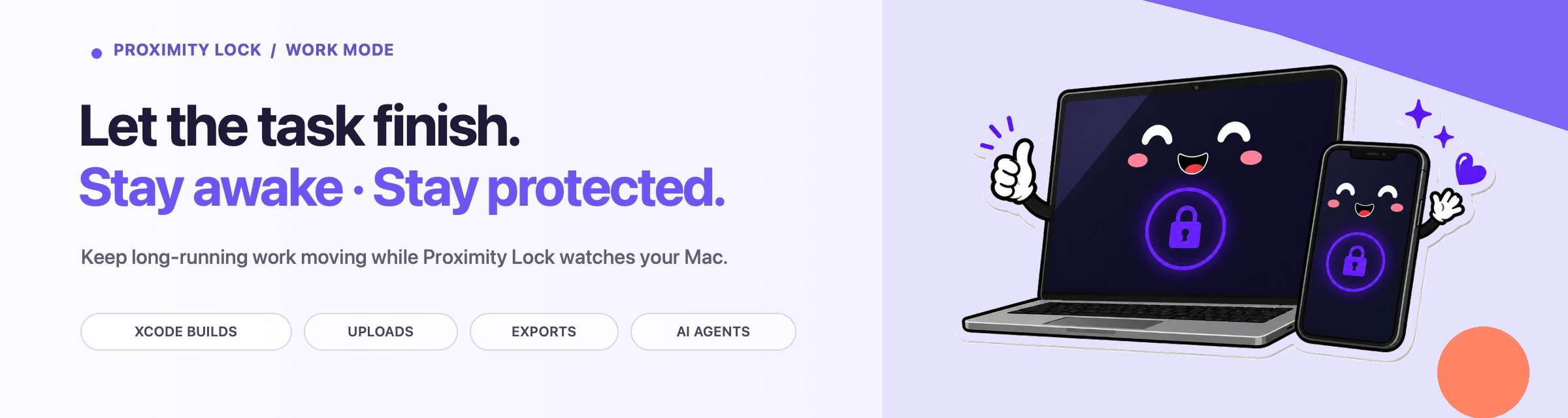
Work Mode: Stay Awake & Protected with Proximity Lock
Table of Contents
Abstract
Have you ever returned to your Mac and realized it went to sleep before your task was finished? I certainly have. 😅
Large file uploads, iCloud syncs, video exports, photo imports, Docker containers, long Xcode builds, AI coding tasks, or large software downloads all take time. You should not have to sit beside your Mac just to keep them active.
That is why I built Work Mode into Proximity Lock: Smart AutoLock. It keeps your Mac awake while your background task completes, without asking you to give up proximity security protection.
In this post, we will look at:
- The everyday problem behind Work Mode
- How Work Mode keeps your Mac awake and protected
- The tasks and workflows that benefit most
- How to share Proximity Lock to unlock a Pro reward
Let’s get started.
The problem
Sleep mode is essential when we finish working. The frustration starts when your Mac goes to sleep before a long-running background task is complete.
Maybe an Xcode build is still running, a video export is rendering, your photo library is syncing, or several gigabytes are uploading to iCloud. These jobs do not require constant attention, but they do require your Mac to stay awake.
I ran into this issue repeatedly in my own daily workflow. I wanted to step away from my desk, focus on another task, and feel confident that my work would continue uninterrupted.
That exact frustration became the primary motivation behind Work Mode.
Work Mode: stay awake and protected
When Work Mode is active, your Mac stays awake so your background tasks continue smoothly. At the same time, Proximity Lock continues monitoring your physical security.
The core idea is simple:
Keep your MacBook awake and secure while you work. Control Work Mode, display behavior, and security protection remotely.
The Work Mode experience brings several key capabilities together:
- Stay awake: Keep long-running jobs active until your task is finished, preventing broken cloud uploads or interrupted builds.
- Display options: Choose how your Mac display behaves during background work, conserving display power without triggering system sleep.
- Distance-based locking: Maintain active proximity security so auto-lock triggers if someone attempts physical access while you are away.
- Café Mode protection: Provide instant siren alarms and photo capture sent straight to your iPhone if someone touches your Mac in a public space.
- Remote monitoring: Check status, track background activity, and manage controls directly from your connected iPhone.
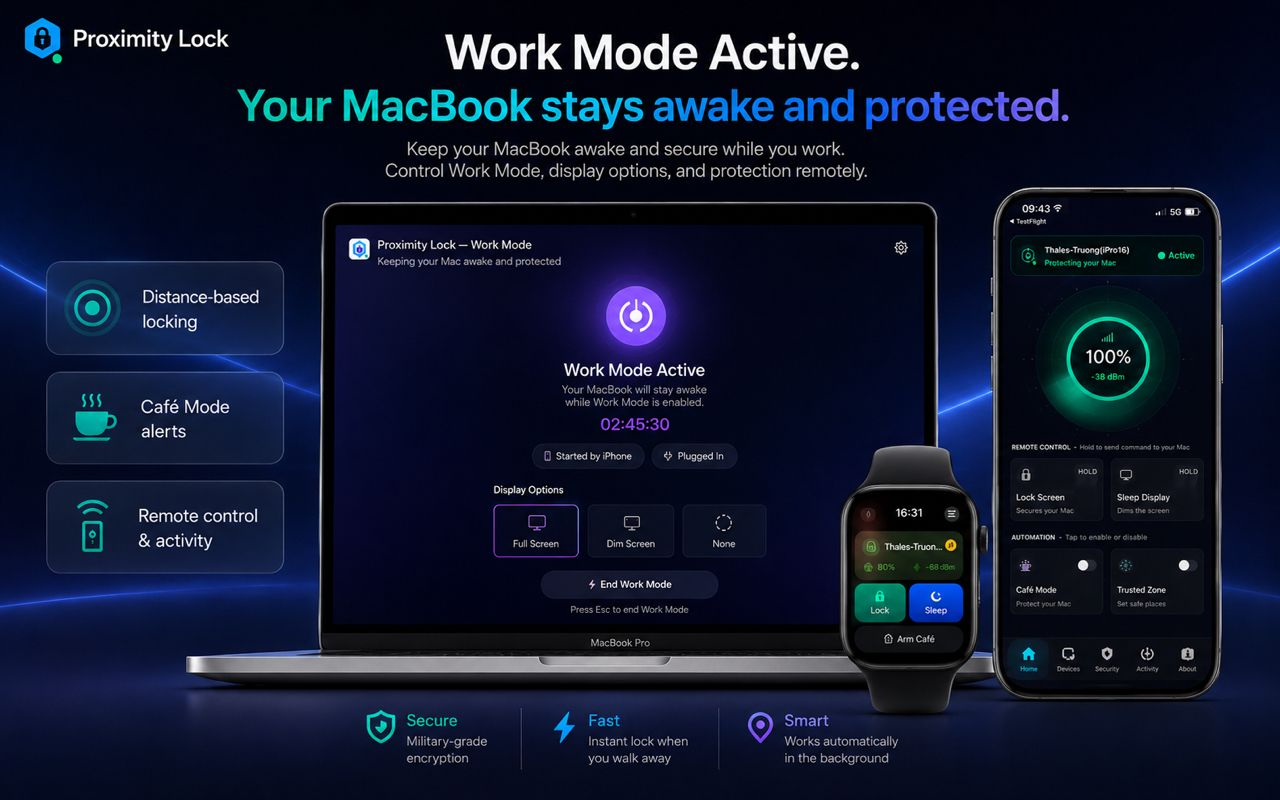
Work Mode keeps your MacBook awake while Proximity Lock continues protecting it.
Work Mode has been refined with better stability, clearer controls, and a smoother interface. The goal is simple: enable Work Mode, let your Mac handle the background work, and return when your job is done.
When is Work Mode useful?
Work Mode is helpful whenever your Mac needs to keep working longer than you do.
Common scenarios include:
- Software builds: Running long Xcode builds, test suites, or compilation processes.
- AI coding tasks: Allowing AI coding agents to complete multi-step code generation tasks.
- Cloud syncs: Uploading large assets or waiting for extensive iCloud syncs to finish.
- Media exports: Rendering video exports or importing large photo libraries.
- Development services: Keeping Docker containers and local backend services active.
- Downloads: Downloading large game files or system software updates.
Each of these tasks shares the same requirement: the Mac must stay awake long enough to finish.
With Work Mode enabled, you can start your task, step away from your desk, and focus on other priorities with total confidence.
Try Work Mode
You can learn more about Proximity Lock: Smart AutoLock and download it here:
- Website: Proximity Lock Official Website
- iOS: Proximity Lock on the App Store
- macOS: Proximity Lock for Mac
Try Free. Love It. Keep It.
Share Proximity Lock and unlock Pro
If Work Mode solves a problem you face daily, I would love for you to share your experience with others.
Repost the Proximity Lock launch post on X and share your thoughts or workflow experience.
Rewards:
- 1,000 post views → 25% OFF Pro
- 4,000 post views → Lifetime Pro FREE
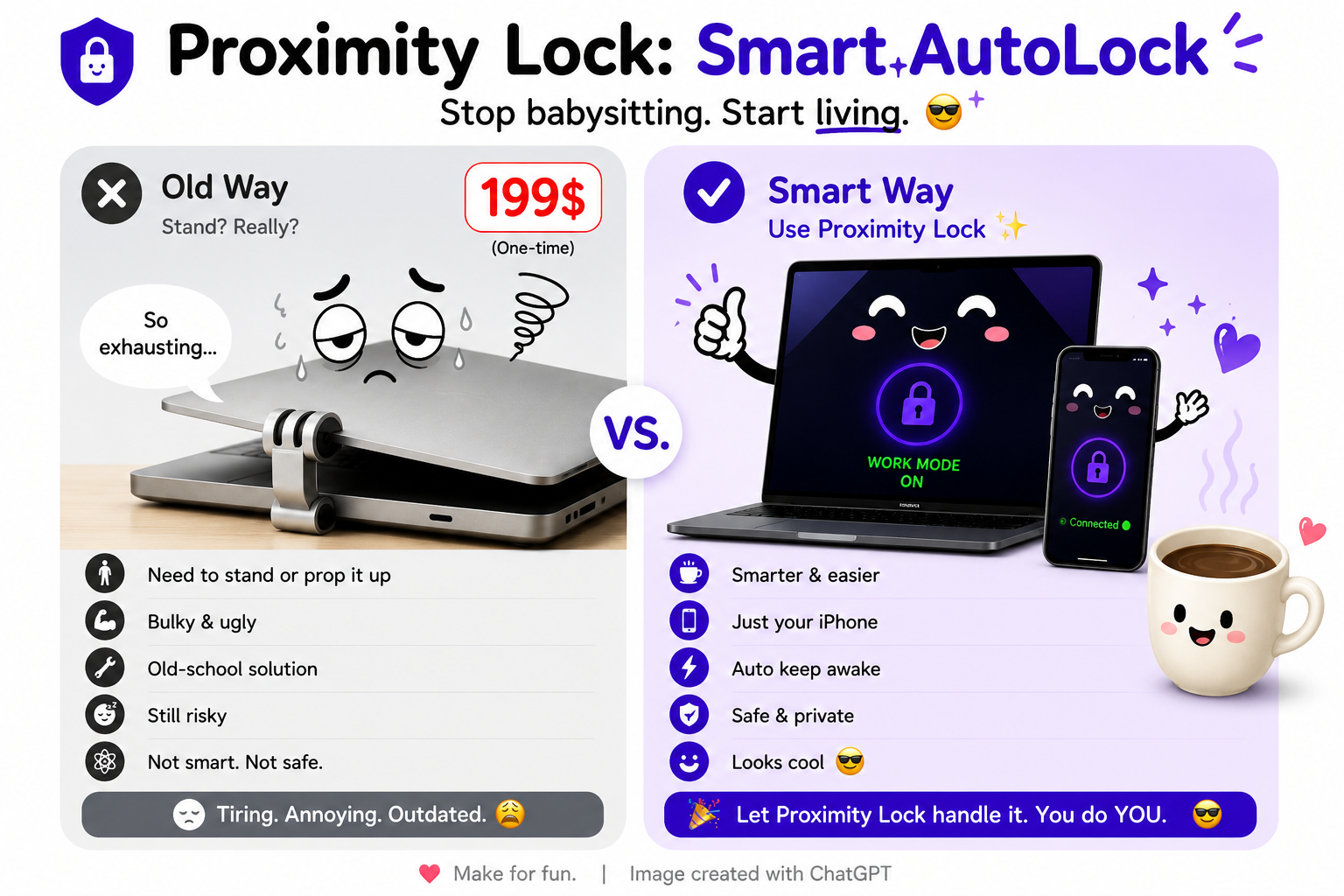
Make for fun
To join the challenge:
- Read the Creator Rewards rules and details.
- Repost the launch post on X with your own experience.
- Reply to the post with the link to your update.
- When you reach a view milestone, share a screenshot of your post analytics.
I will verify your submission and send your Pro reward key.
Conclusion
Work Mode started from a simple, real-world pain point: needing my Mac to keep working even when I stepped away from my desk.
Now, long builds, cloud syncs, video exports, and heavy downloads can complete smoothly while Proximity Lock stays active in the background. It is a simple feature, but it makes daily work feel much easier.
What tasks do you usually leave running on your Mac? Let me know. See you in the next post!
Posts in this Series
- Work Mode: Stay Awake & Protected With Proximity Lock
- Proximity Lock: Smart AutoLock - A Native Security & Productivity Companion for Your Mac
Support My Work
If you enjoyed this article or found it helpful for your development journey, consider buying me a coffee. Your support fuels more in-depth technical posts and open-source projects!